Using the Later list as your main workflow

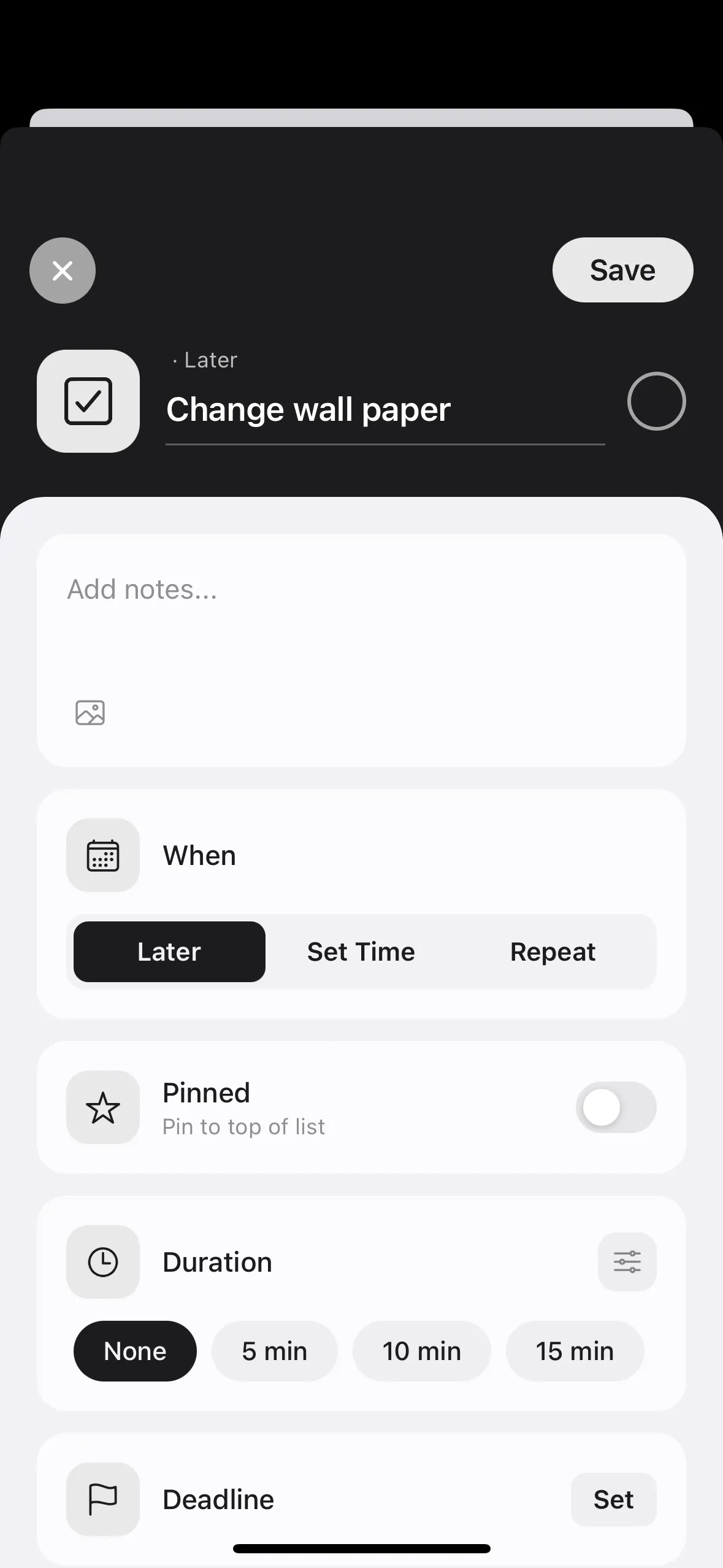
Register tasks you think of to "Later" to clear your head

You can set duration and pin tasks

When ready, drag tasks to the timeline to schedule them

You can also add all tasks to "Later" and process them from top to bottom
Using the Later list as your main workflow

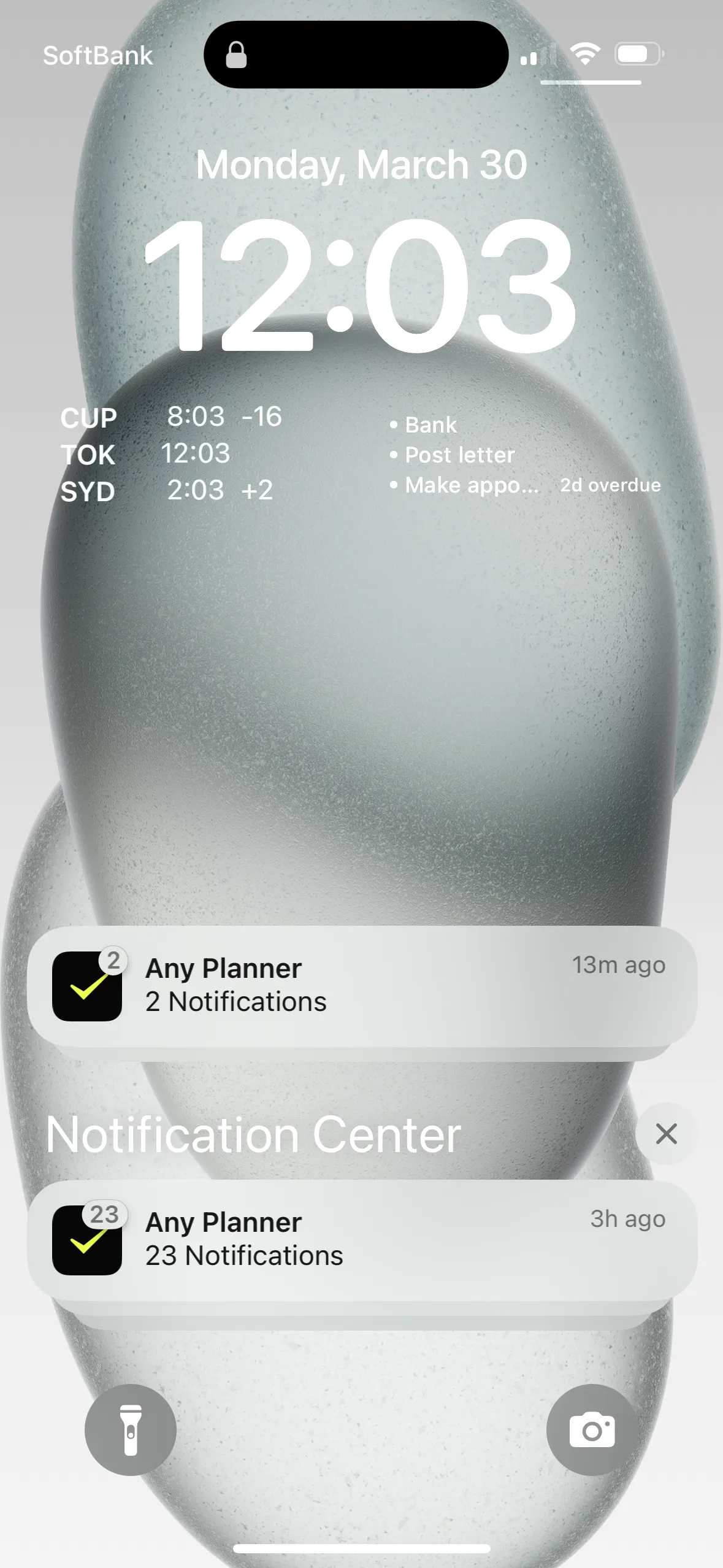
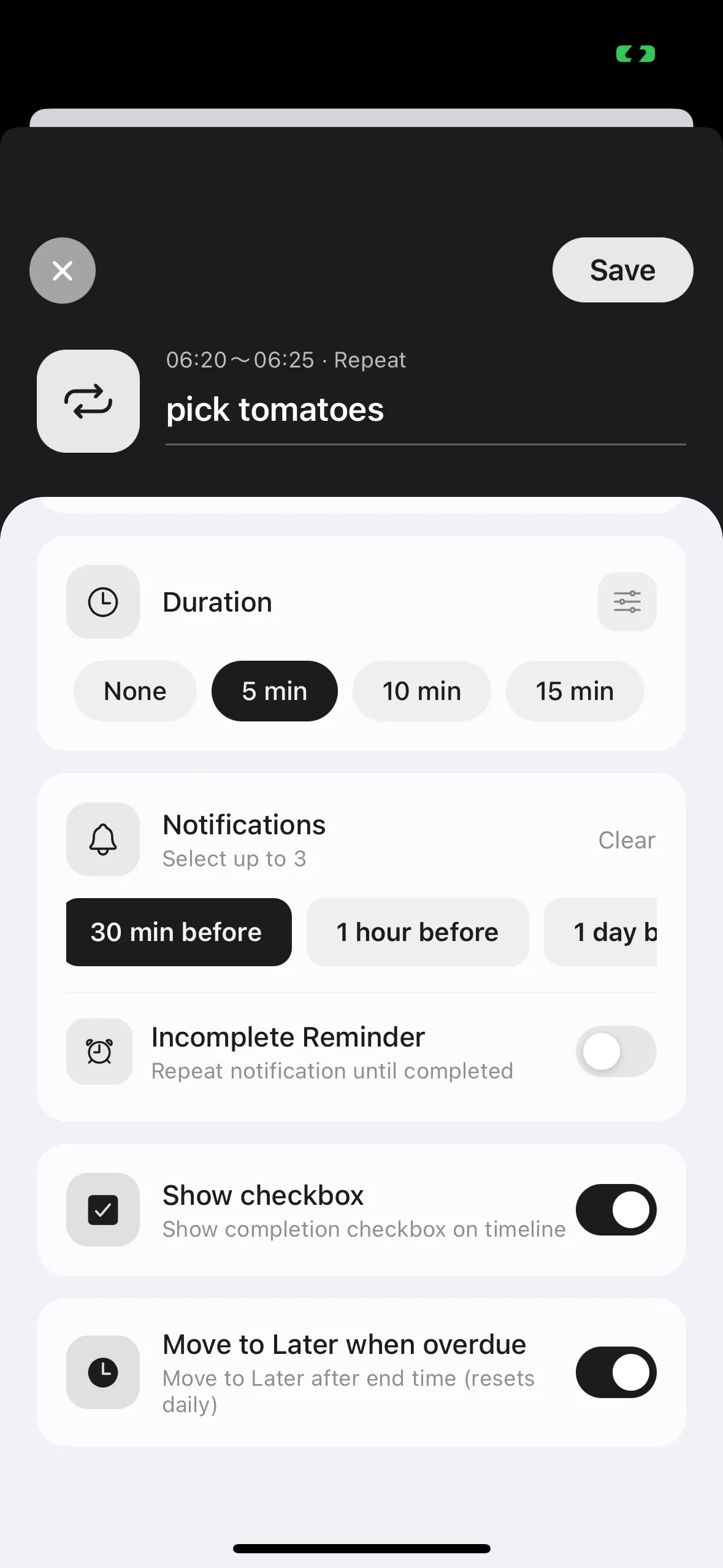
Using notifications effectively

Place tasks with fixed times directly on the timeline

You will receive a notification at the start time

You can also set a deadline

Enable incomplete reminders to receive repeated notifications until the task is completed (PRO feature)

Using notifications effectivelyUsing notifications effectively

Understanding the Timeline

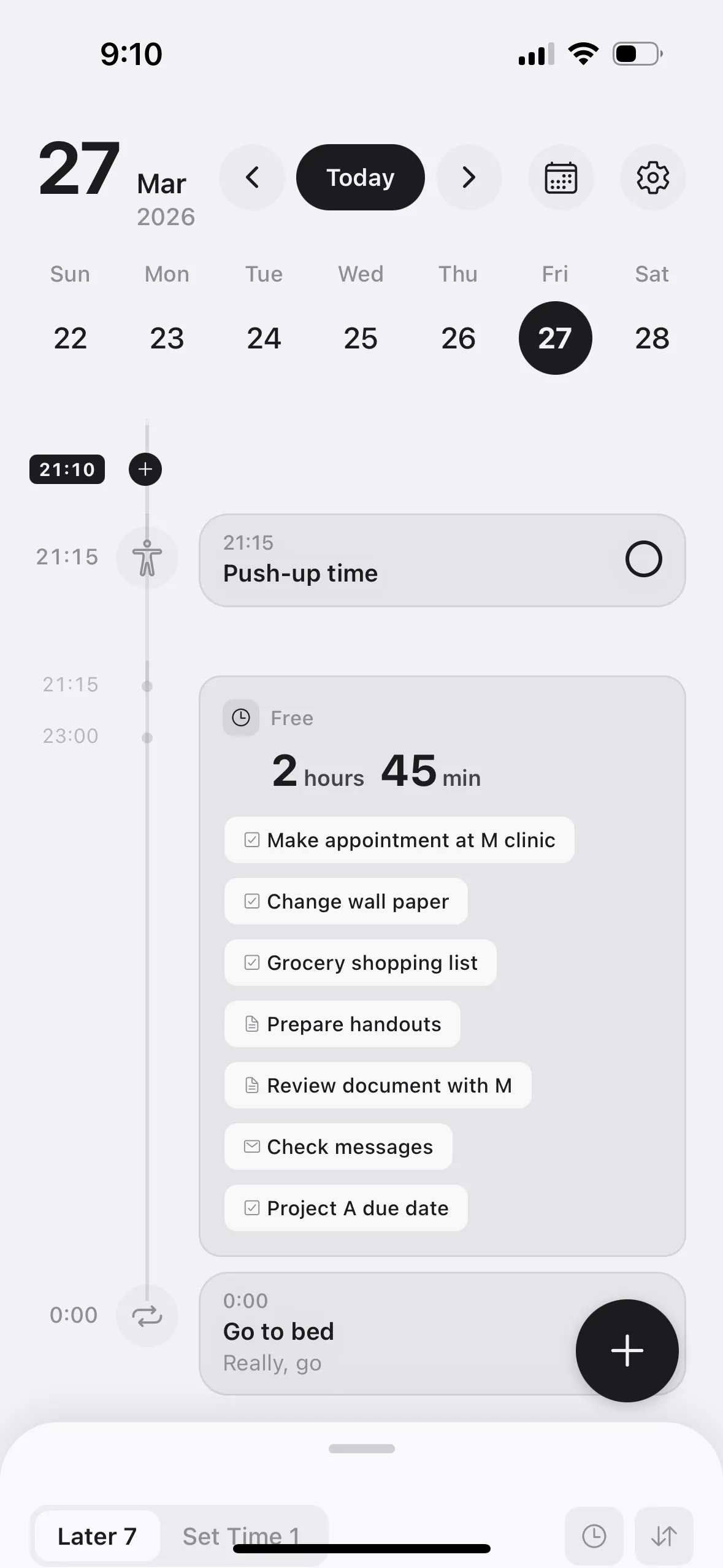
Your daily schedule is displayed in timeline format on the main screen

Time is shown on the left, tasks on the right

The current time is displayed as a black badge

Scheduled tasks appear at their designated time slots

"Later" tasks are grouped in free time blocks

Use the tabs at the bottom to switch between the "Later" list and "Scheduled" list

Understanding the Timeline

Morning timeline check

Checking the timeline after waking up helps you grasp the day's free time and task load

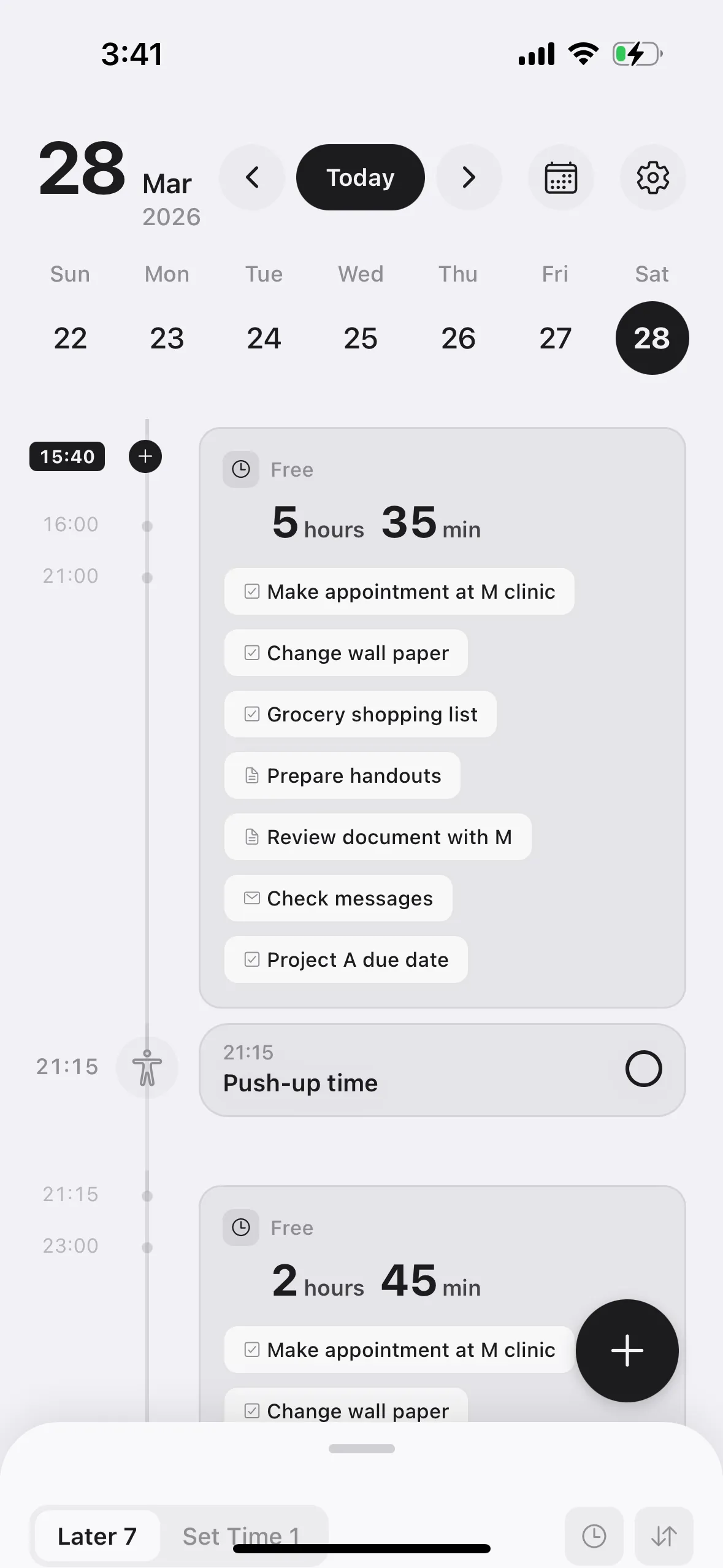
Checking Free Time

Checking Free Time

"Free time" blocks automatically appear between events on the timeline

The free time duration is displayed as "Xh Xm", and "Later" tasks that fit within that time are shown as candidates

Use this to check remaining time for the day

Checking Free Time

Using free time

Free time blocks automatically show "Later" tasks that fit within the duration

Tap a task to start working on it immediately

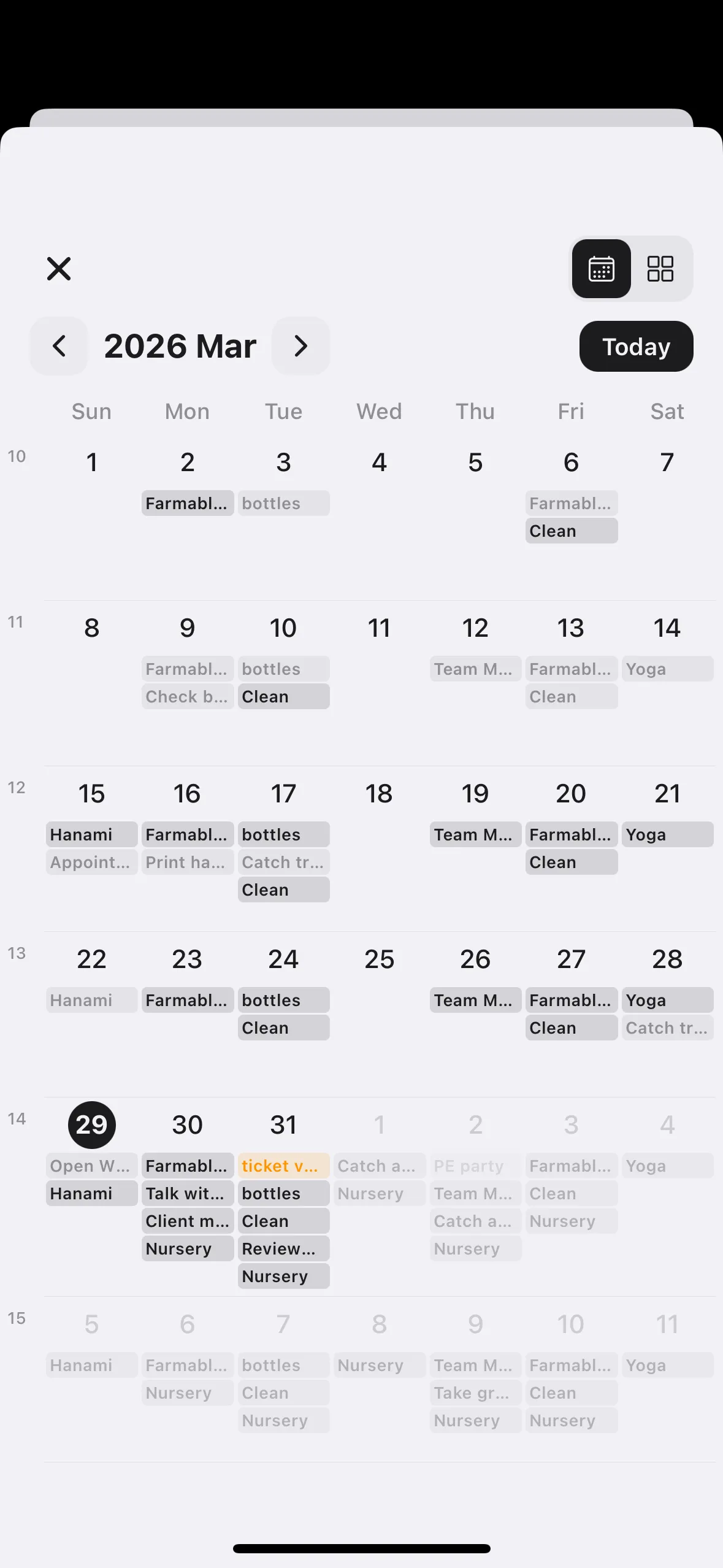
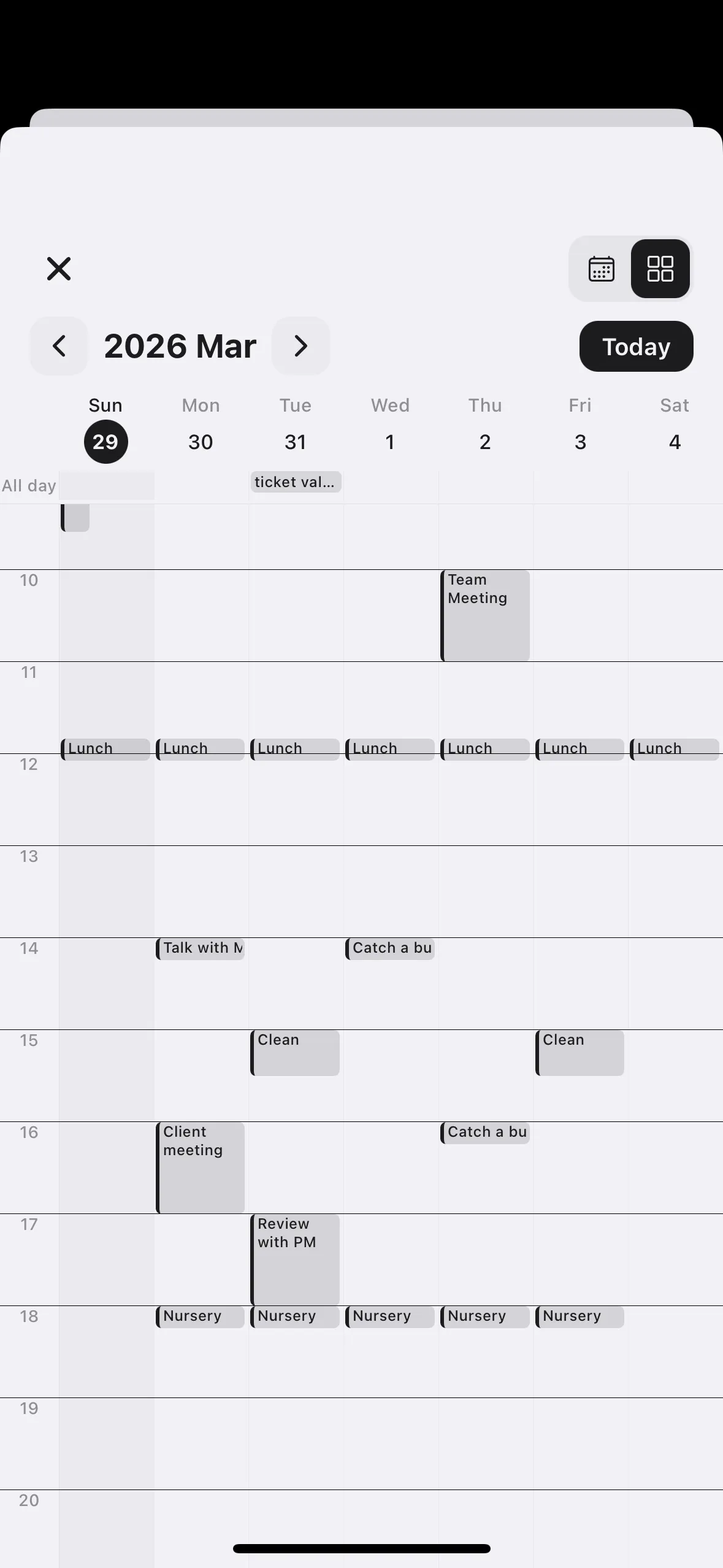
Viewing the Monthly Calendar

Tap the calendar icon in the top right of the header to switch to the monthly view

You can check task placement on a monthly basis

Viewing the Monthly CalendarViewing the Monthly CalendarViewing the Monthly Calendar

Need more help?

If the above doesn't resolve your issue, feel free to reach out through the Contact page.