
iPhone
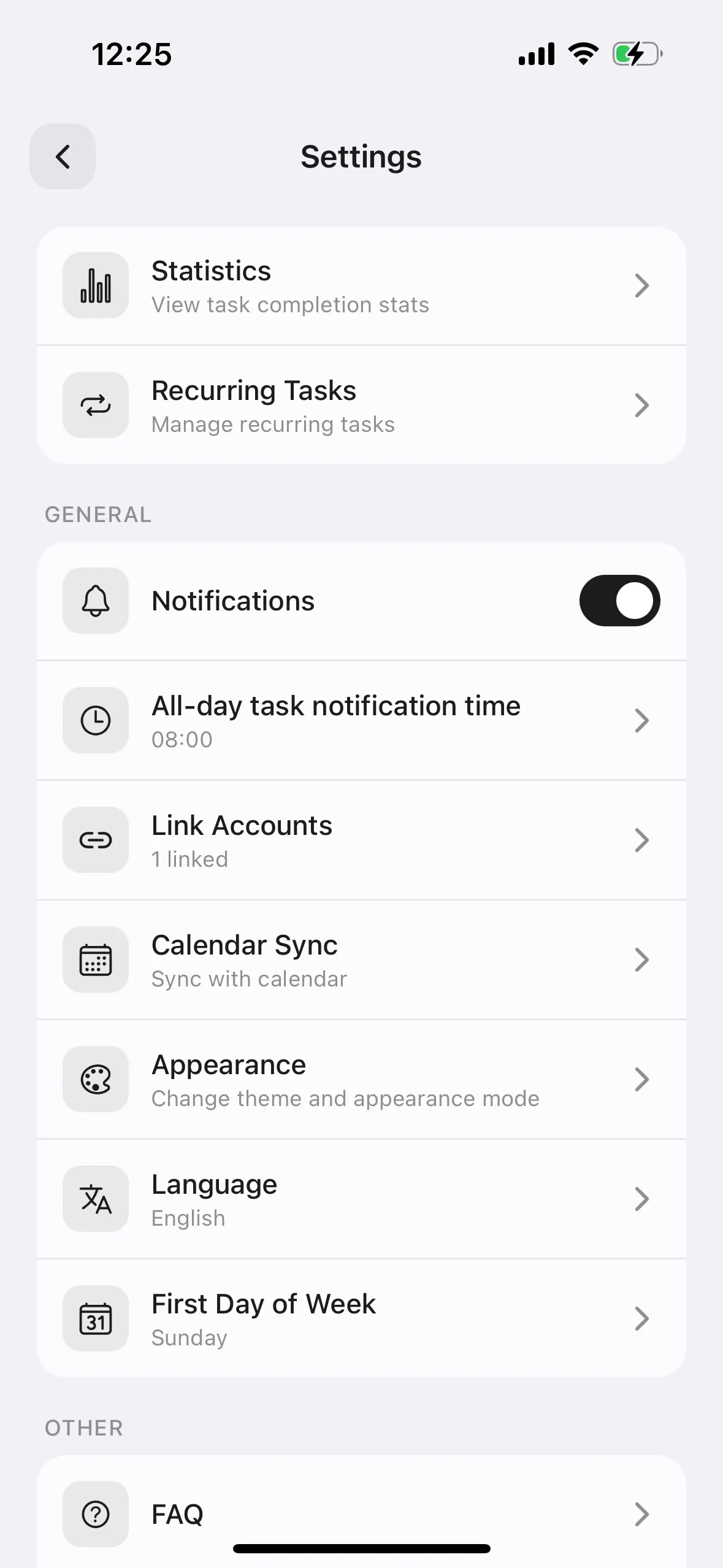
Enable OS calendar sync from Settings → "Calendar Integration"
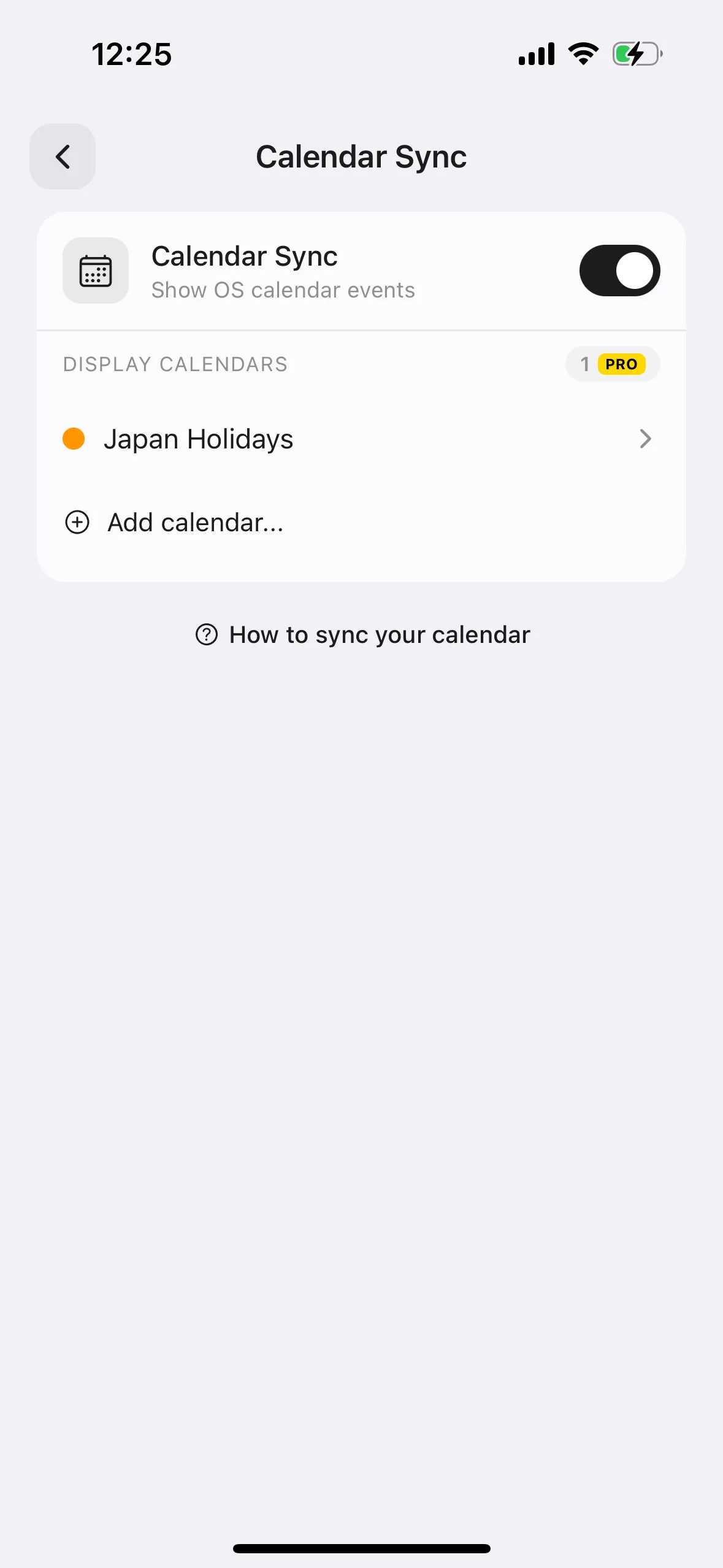
When turned ON, events from your device's calendar are displayed on the timeline
You can select which calendars to display
Multiple calendar sync is a PRO feature
- Make sure you have events in your iPhone's Calendar app (any linked accounts like iCloud, Google Calendar, etc. will work)
- Open the Any Planner app and go to Settings → "Calendar Integration"
- Turn on the "Calendar Integration" toggle. iOS will show a permission dialog asking for calendar access — tap "Allow"
- Your device's calendars (iCloud, Google Calendar, etc.) will be listed. Select the ones you want to display on the timeline
- If you accidentally denied permission, go to iPhone Settings → Any Planner → Calendars and turn it on