Additional features for more convenient use

Viewing Statistics

Open the settings screen from the screen header and check "Statistics"

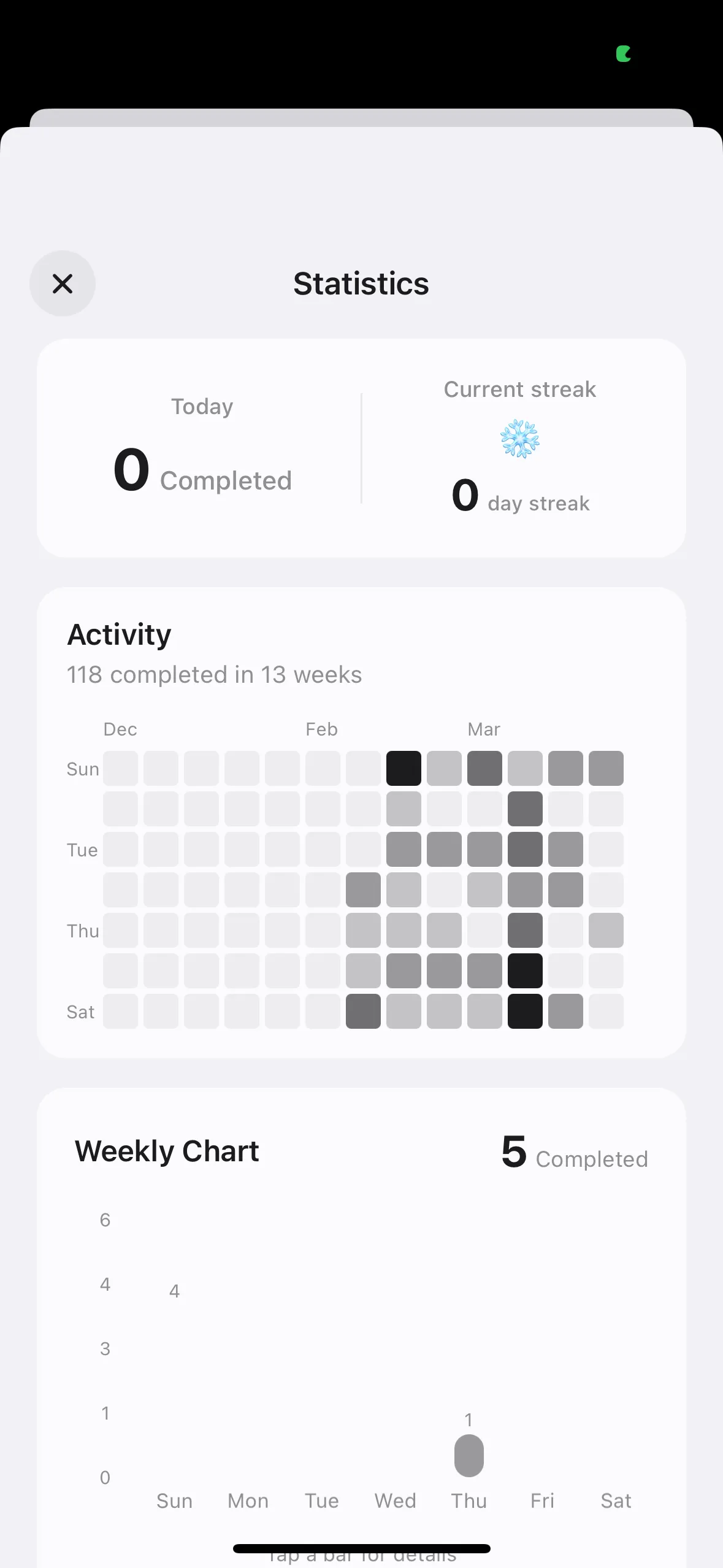
Shows today's completed tasks, streak days, 13-week activity heatmap, and weekly chart

Monthly statistics are available in PRO version
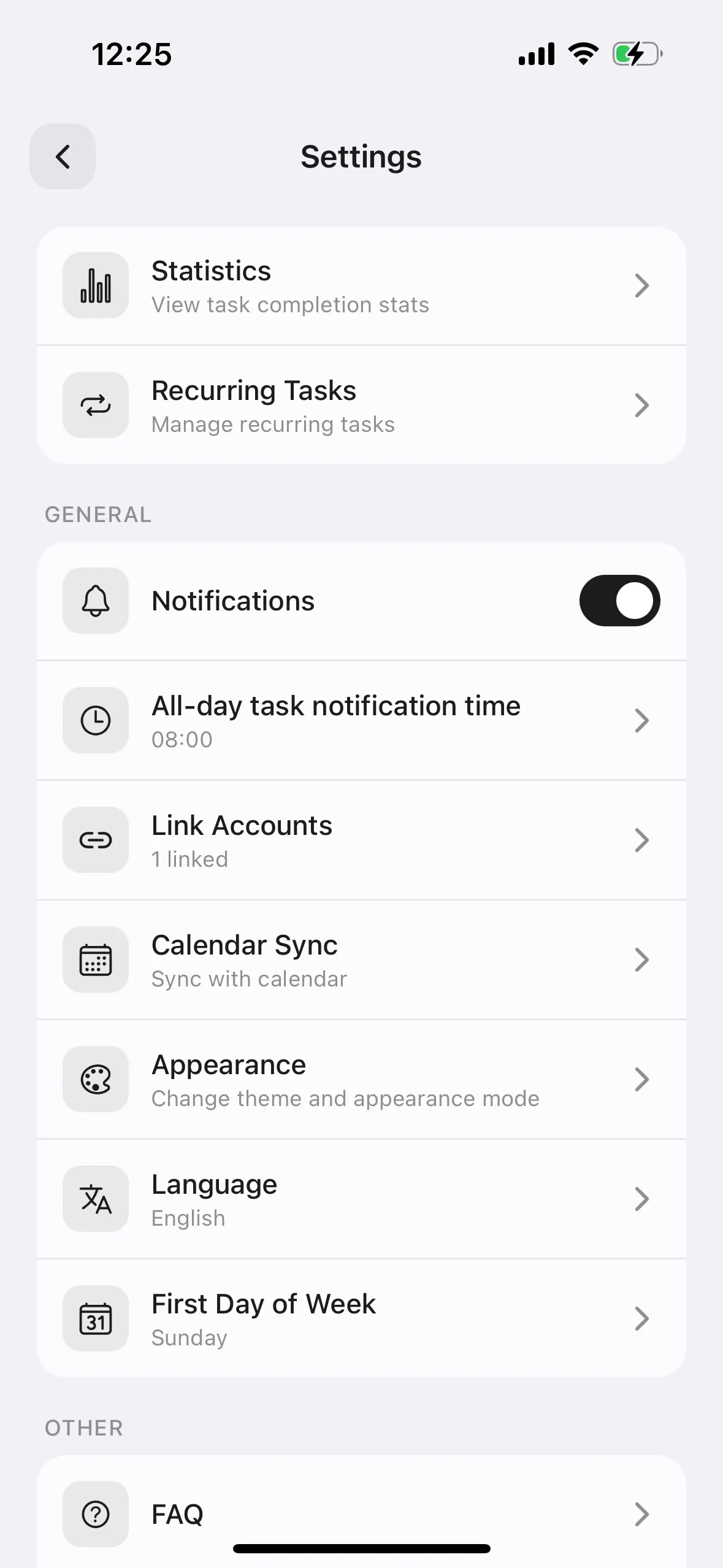
Tap "Statistics" from Settings

Tap "Statistics" from Settings

Shows today's completed tasks, streak days, and weekly chart
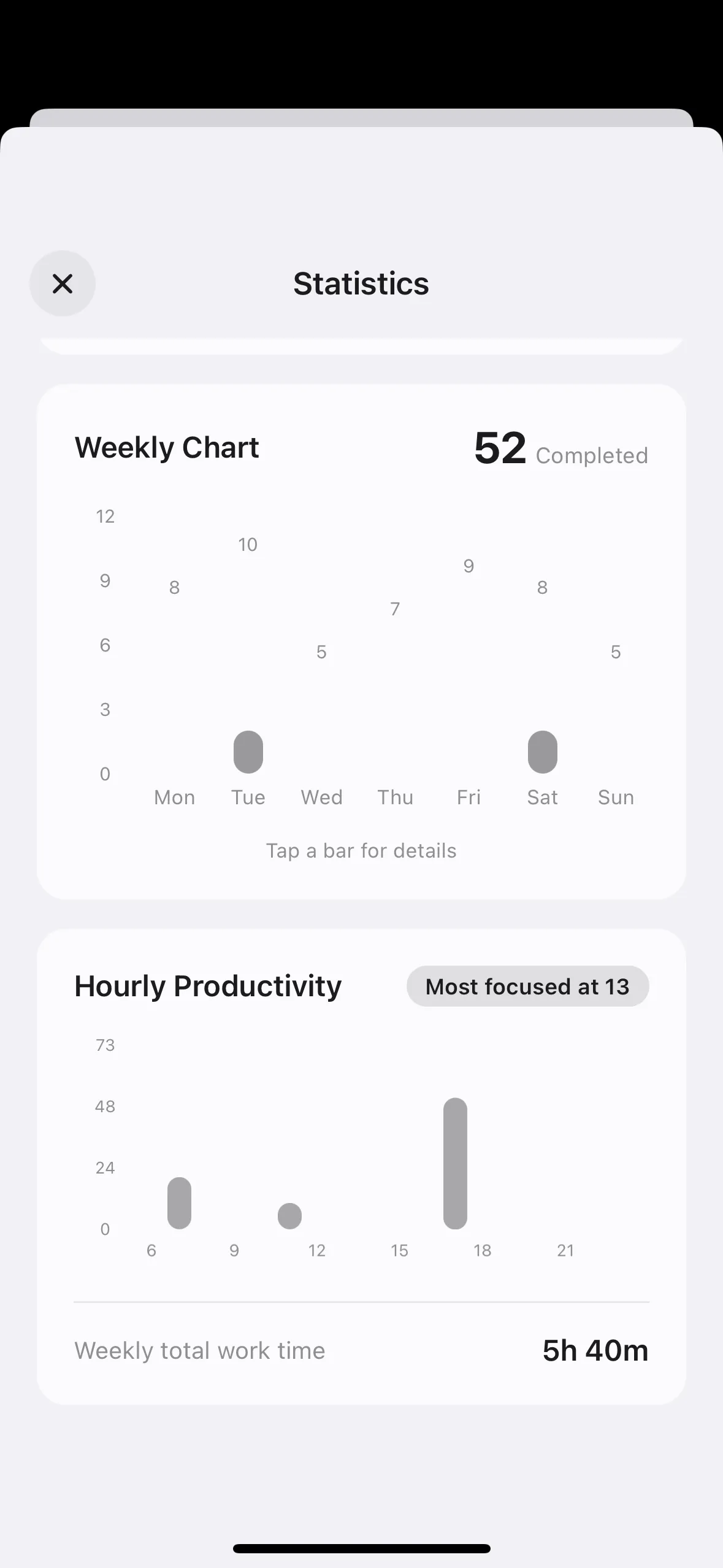
Shows today's completed tasks, streak days, and weekly chart

Shows 13-week activity heatmap and hourly productivity

Shows 13-week activity heatmap and hourly productivity

Understanding statistics

The heatmap shows completed tasks over the past 13 weeks by color intensity

Streak days count consecutive days with at least one completed task
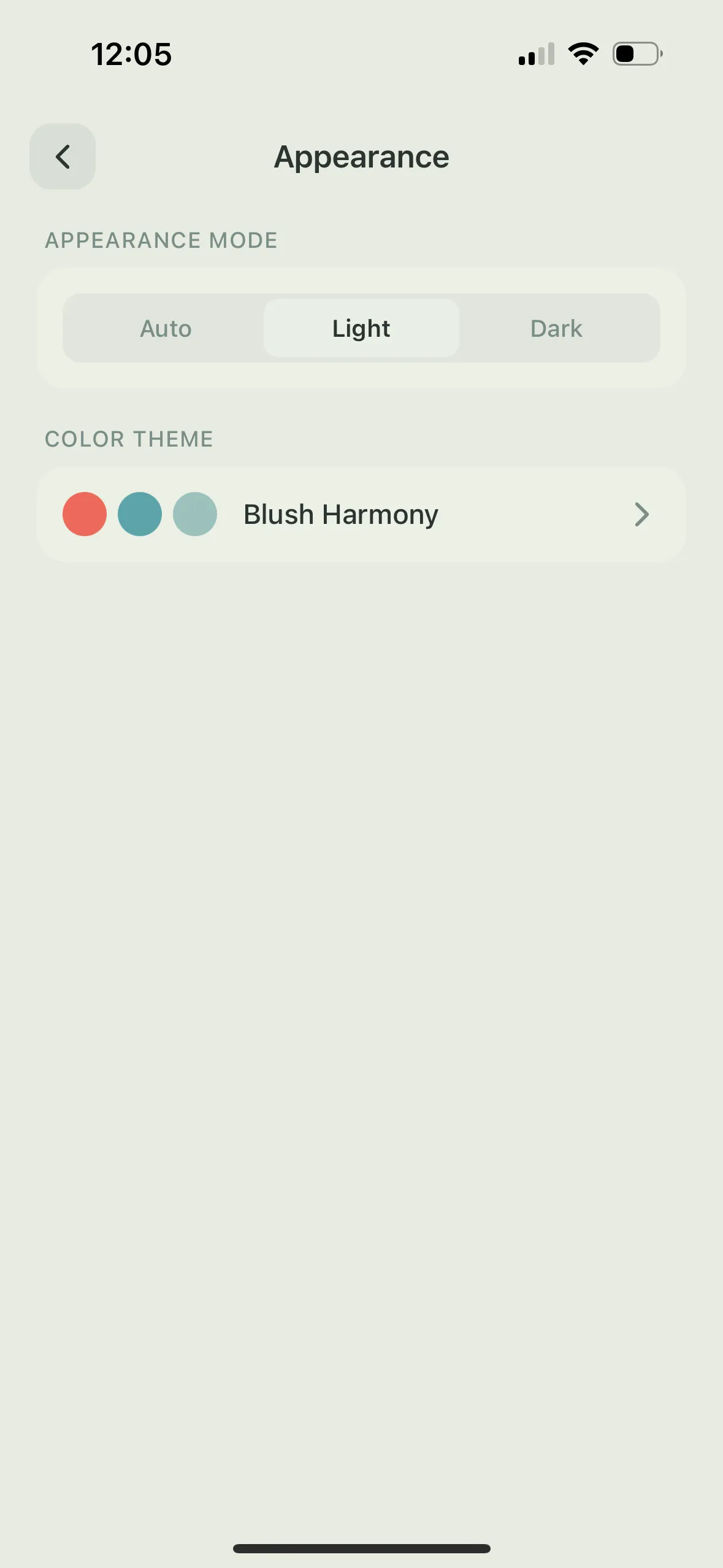
Changing Themes

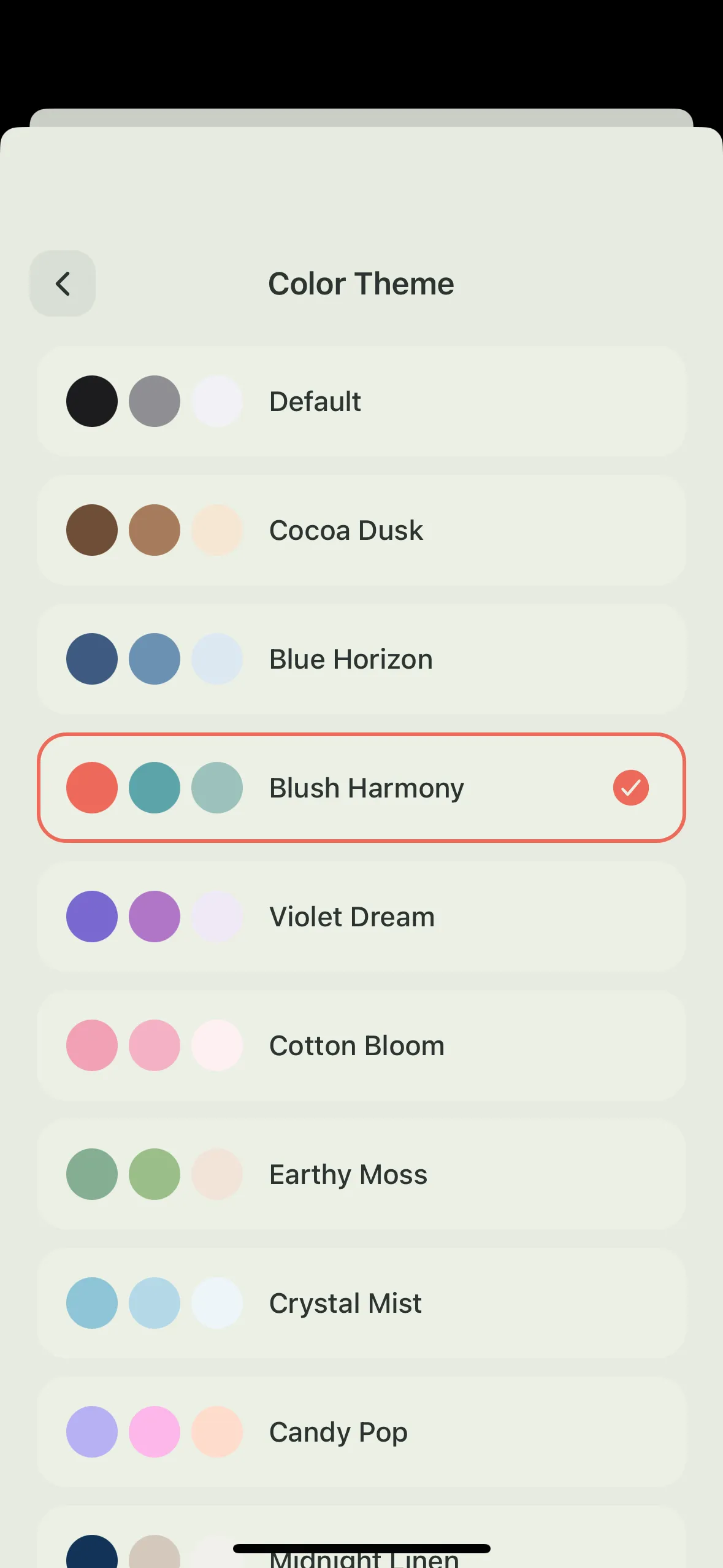
Change the theme color from Settings → "Appearance" → "Color Theme"

Options include Default, Cocoa Dusk, Blue Horizon, Blush Harmony, Violet Dream, Cotton Bloom, Earthy Moss, Crystal Mist, Candy Pop, and more

Appearance mode (Auto/Light/Dark) can also be changed on the same screen

Changing ThemesChanging Themes

Setting Wake-up & Bedtime

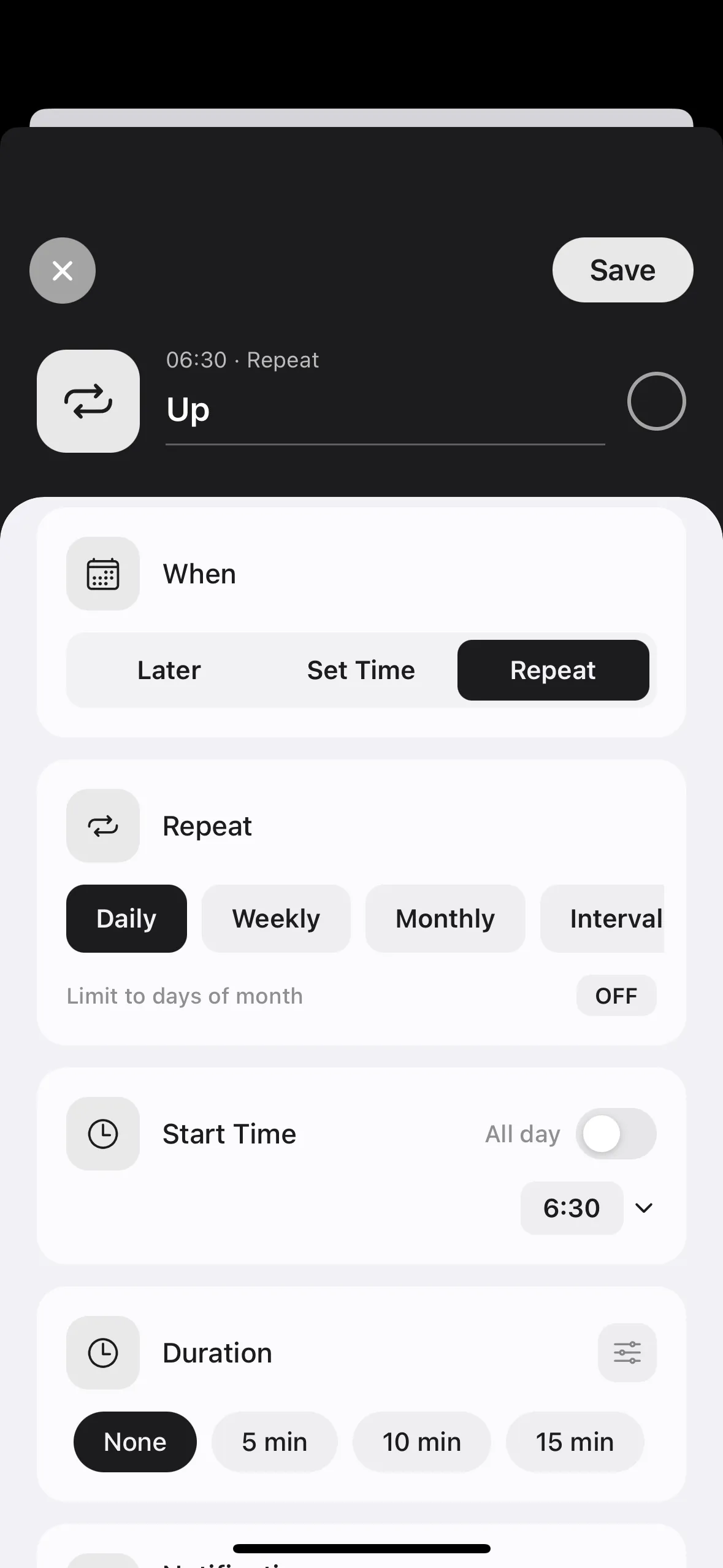
Set your wake-up and bedtime from Settings → "Recurring Tasks"

Tap the wake-up task to change the time or recurrence frequency

Bedtime can be configured the same way

The configured times are reflected as the start and end of your timeline

Even if set during the initial setup, you can change it here

Setting Wake-up & Bedtime

Managing your daily rhythm

Setting wake-up and bedtime makes your available hours for the day clear

This is also reflected in free time calculations

Setting Up Notifications

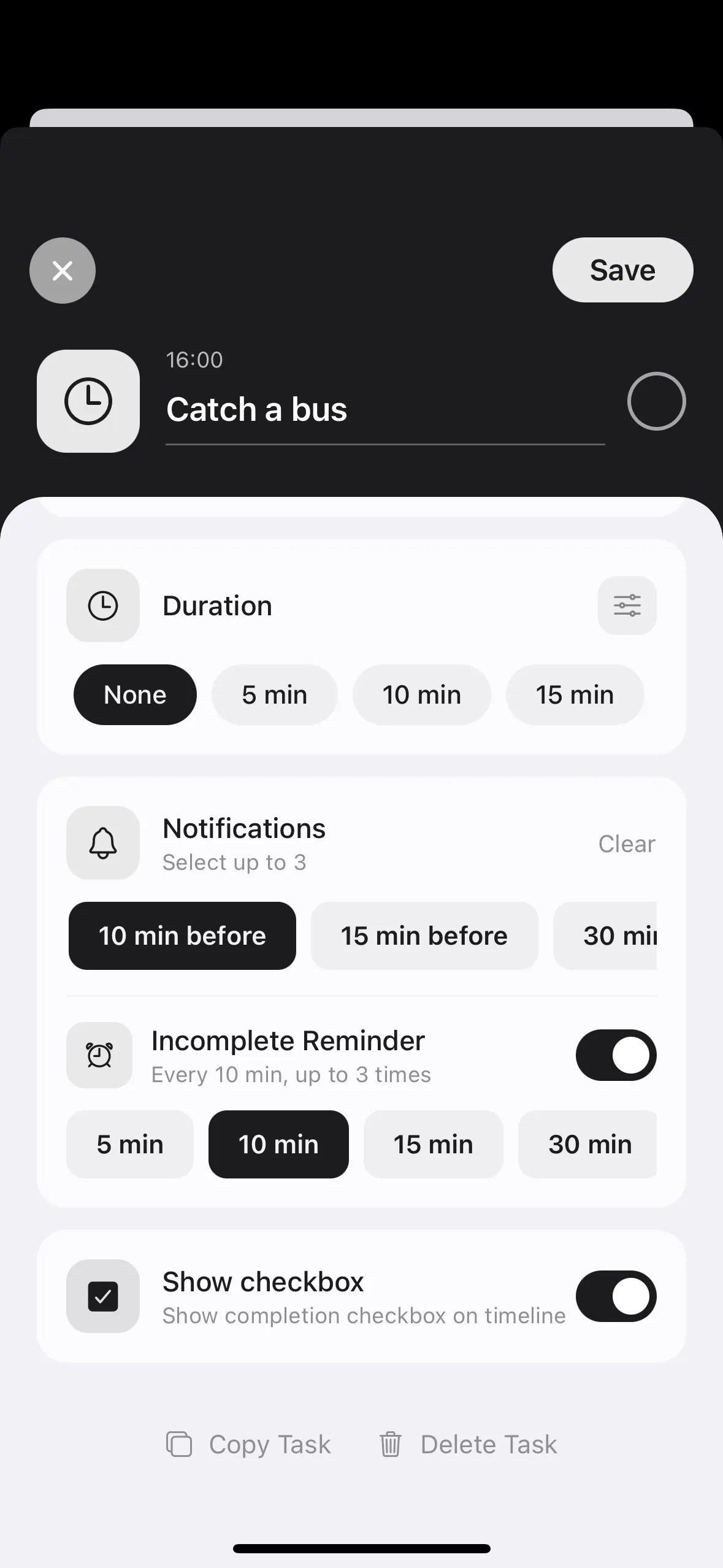
Set up to 3 notifications for start time from the "Notification" section in the task edit screen

For scheduled tasks: "At start time" to "Day before"

For "Later" tasks: choose from "Same day", "Day before", or "2 days before" in the notification section

Notification settings screen

Notification settings screen

Notification options for "Later" tasks

Notification options for "Later" tasks

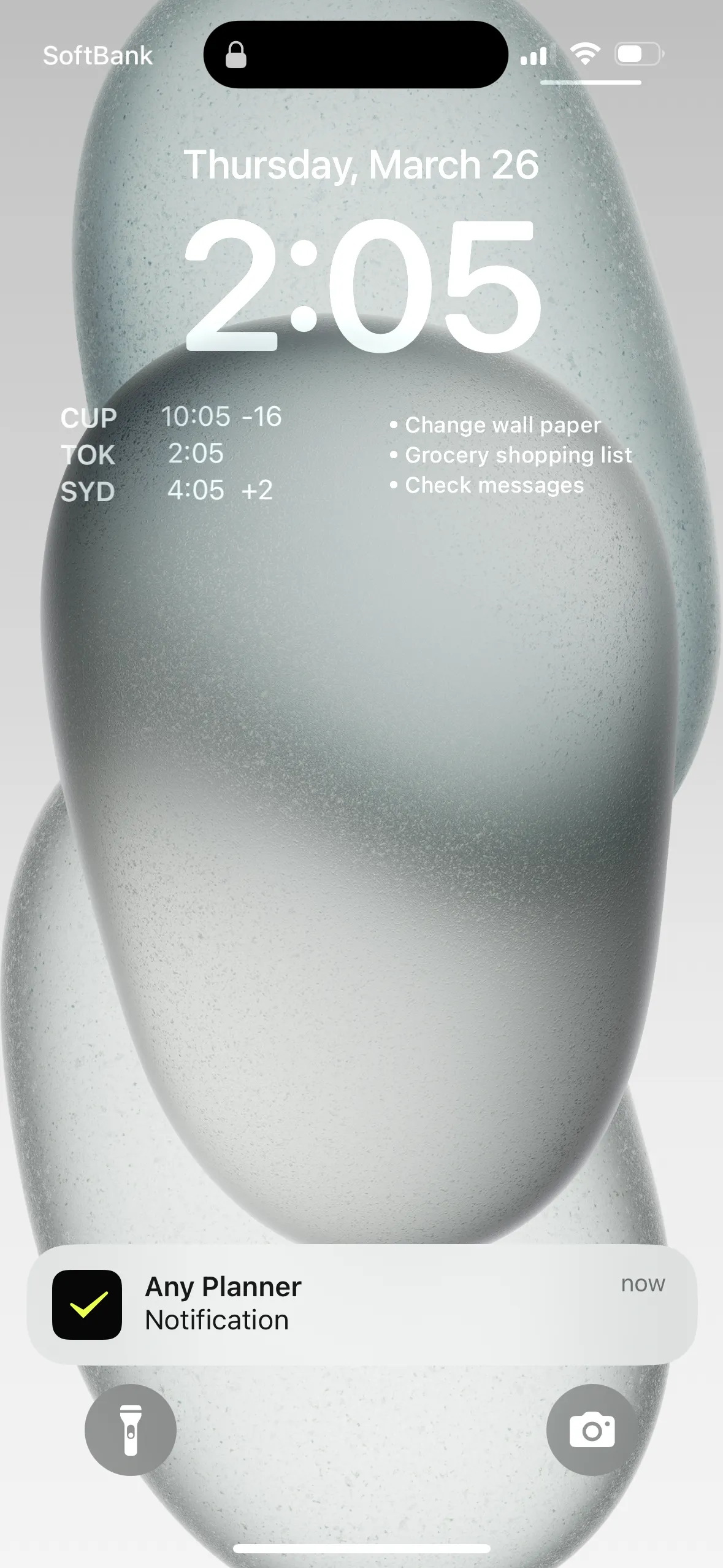
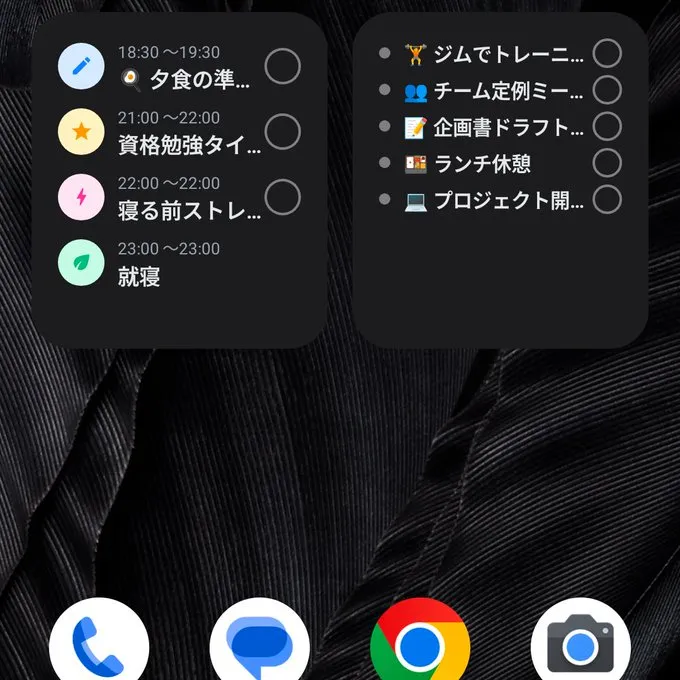
Also notify on home screen and lock screen (iPhone)

Also notify on home screen and lock screen (iPhone)

Enable incomplete reminder to receive repeated notifications until the task is completed (PRO feature)

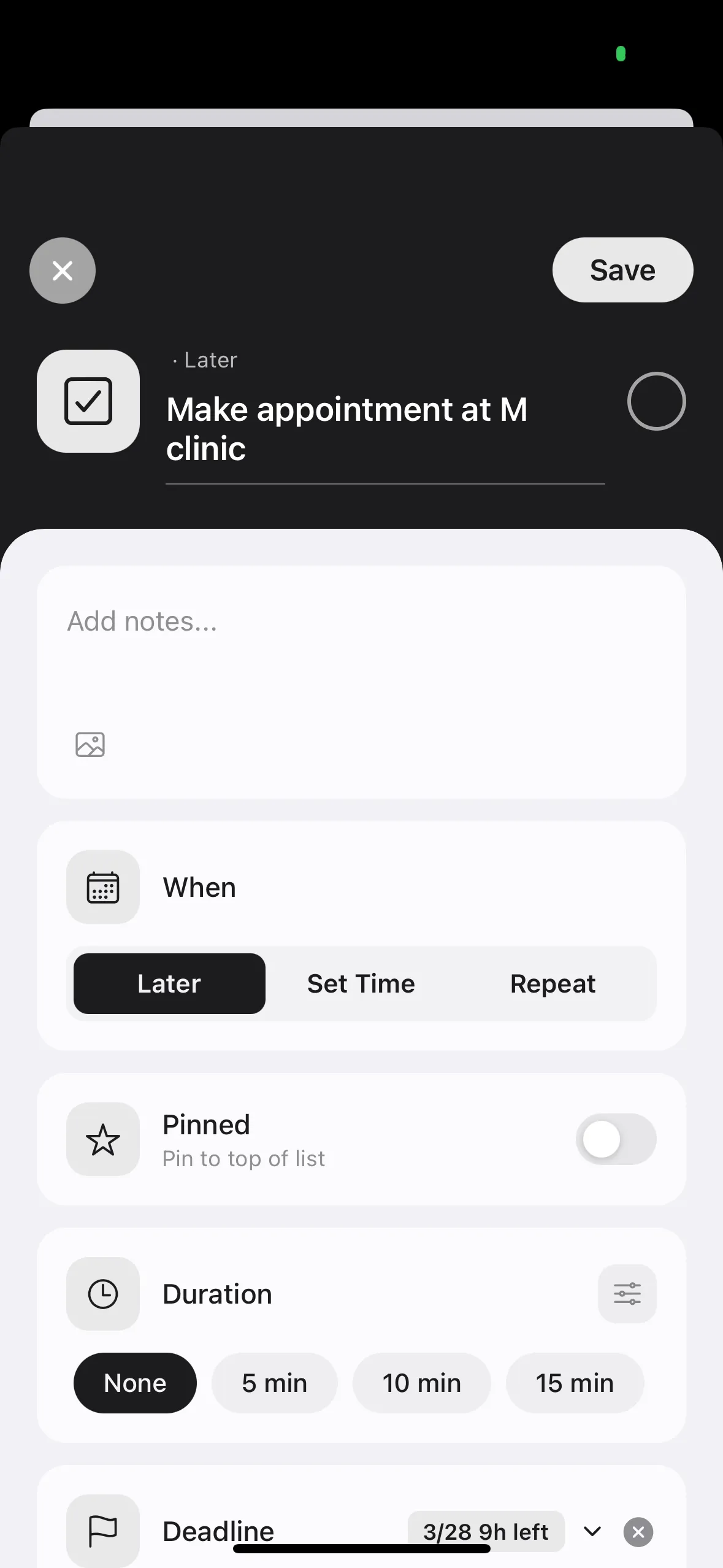
Adding images to tasks

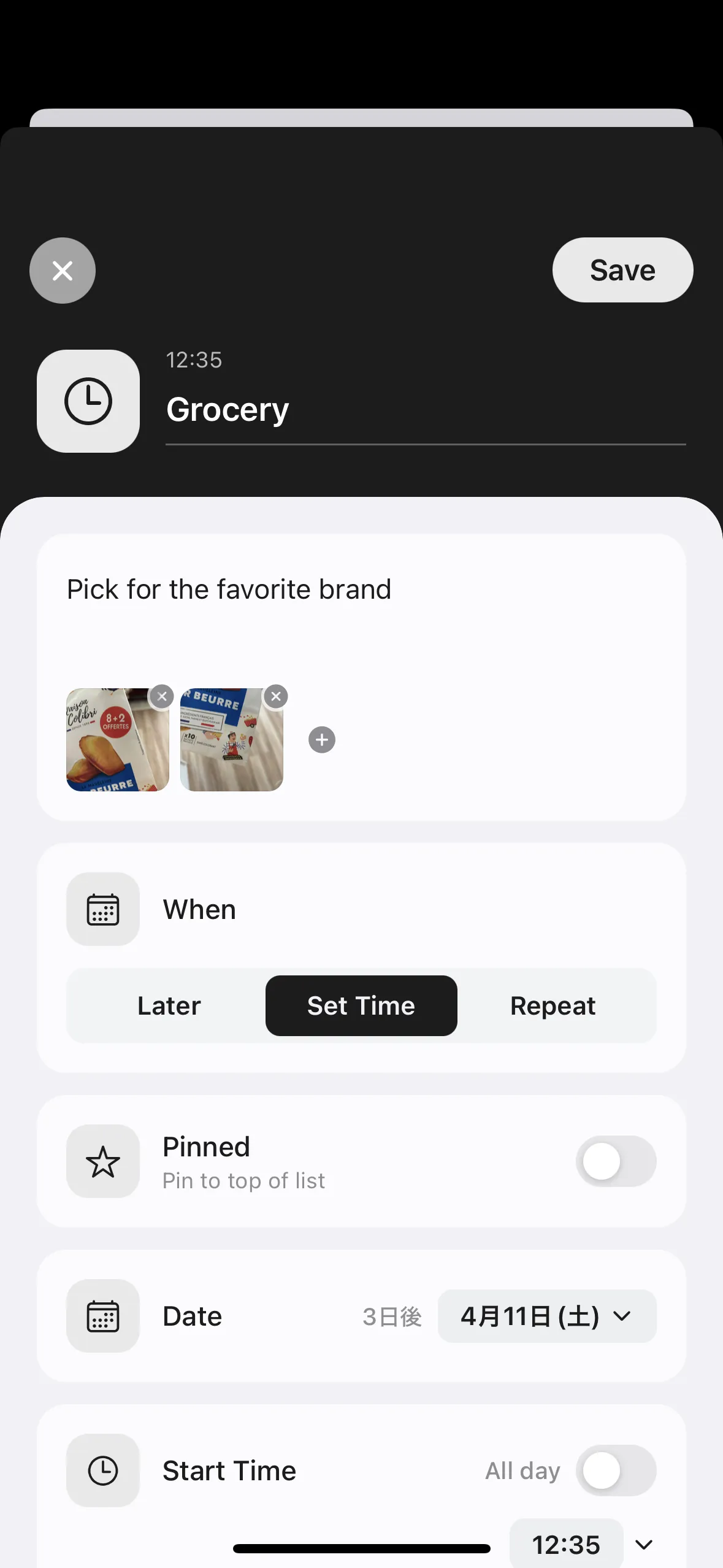
You can add up to 3 images to a task

Adding images to tasks

Adding Tasks with Siri

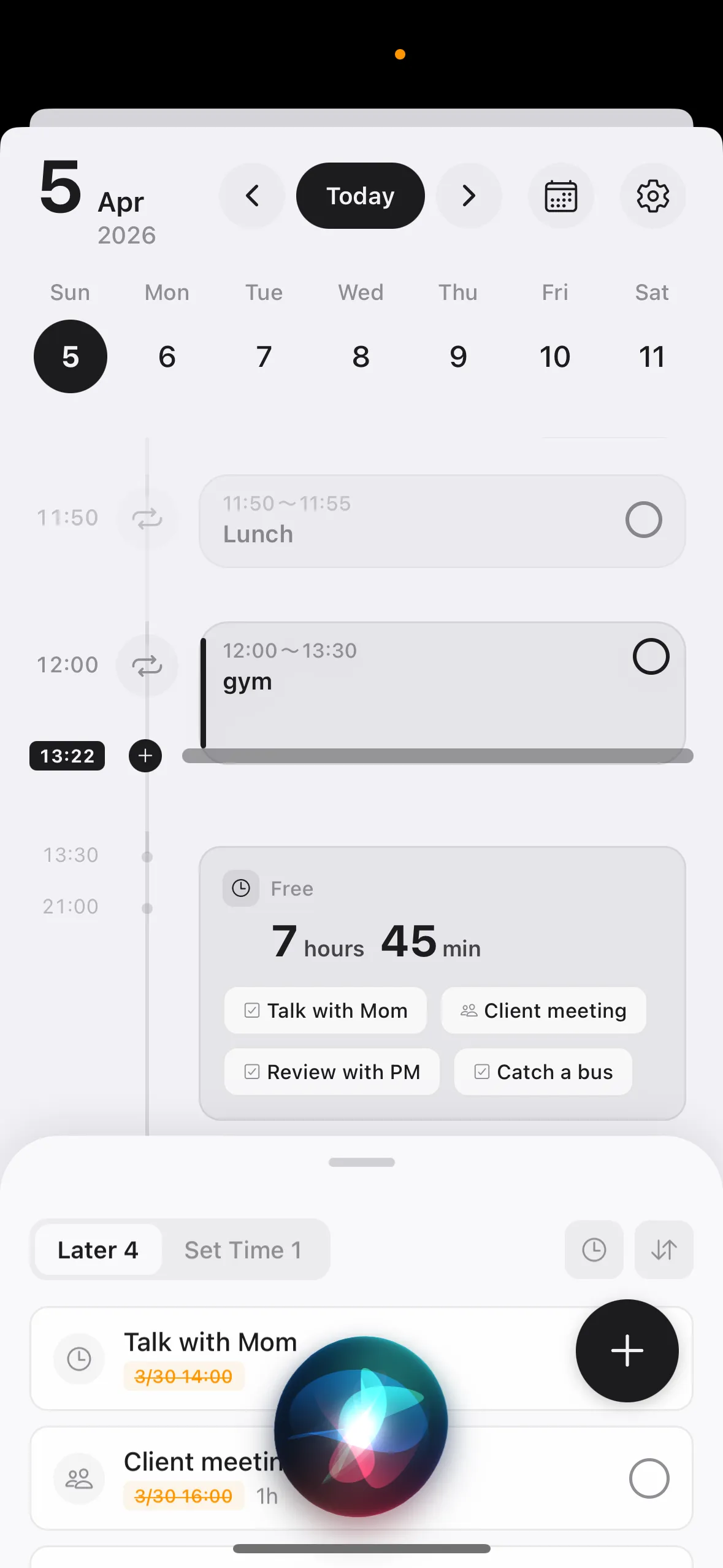
You can add tasks using Siri

Tasks are added to the "Later" list

Uses App Intents functionality

Available on iOS 16 and later

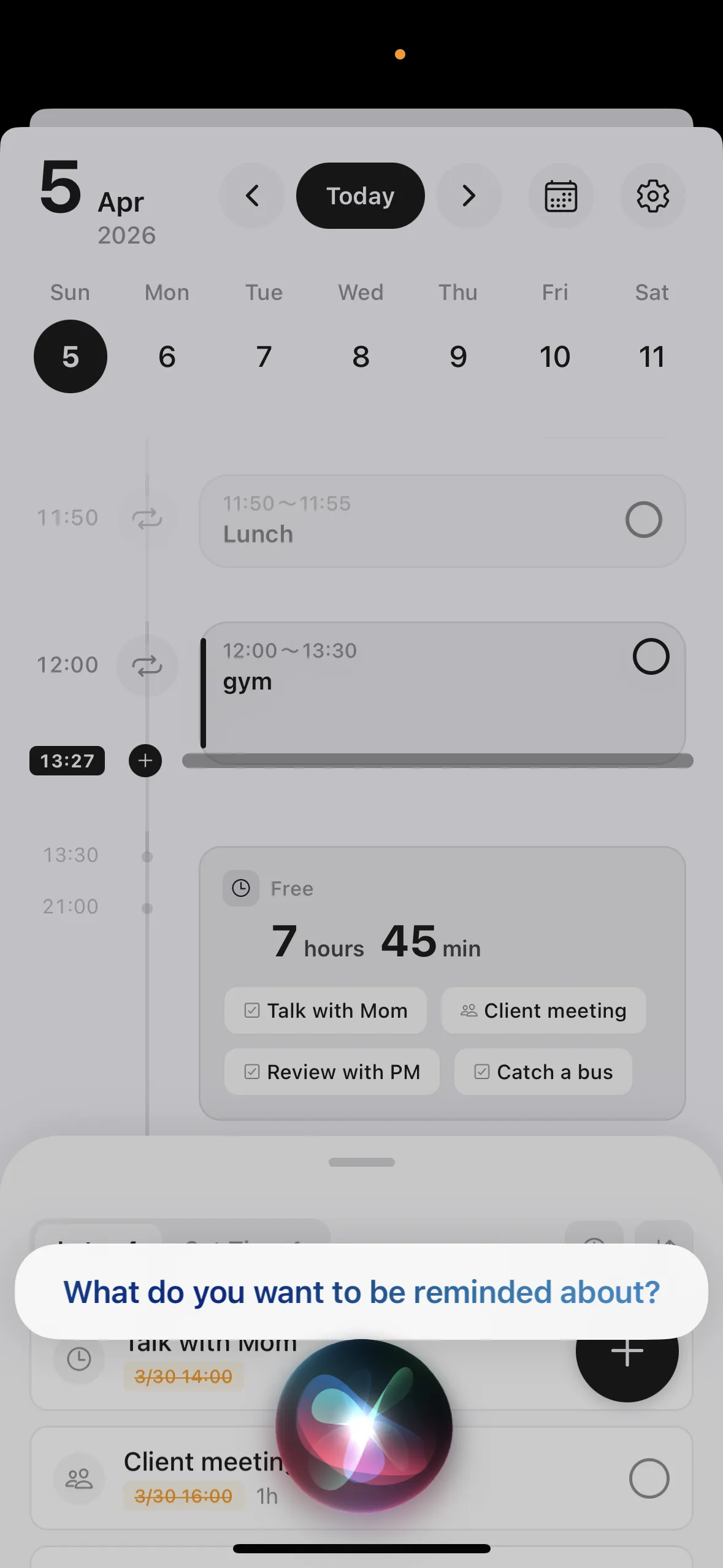
Say "Hey Siri, add a task in Any Planner"

Say "Hey Siri, add a task in Any Planner"

Enter by voice

Enter by voice

Using Apple Watch

View tasks and mark them complete on Apple Watch

You can complete tasks without taking out your iPhone

Compatible with watchOS 10.0 and later

Using Apple Watch

Quick Add with Action Button

You can assign Any Planner task creation to the Action Button on iPhone 15 Pro and later

Go to iPhone Settings → Action Button → Shortcuts and select "Any Planner Add Task"

Register tasks without opening the app

Works even when the screen is locked

Need more help?

If the above doesn't resolve your issue, feel free to reach out through the Contact page.