Getting Started Guide
Whatever comes to mind, just drop it all into "Later"
See your day's free time at a glance on the timeline
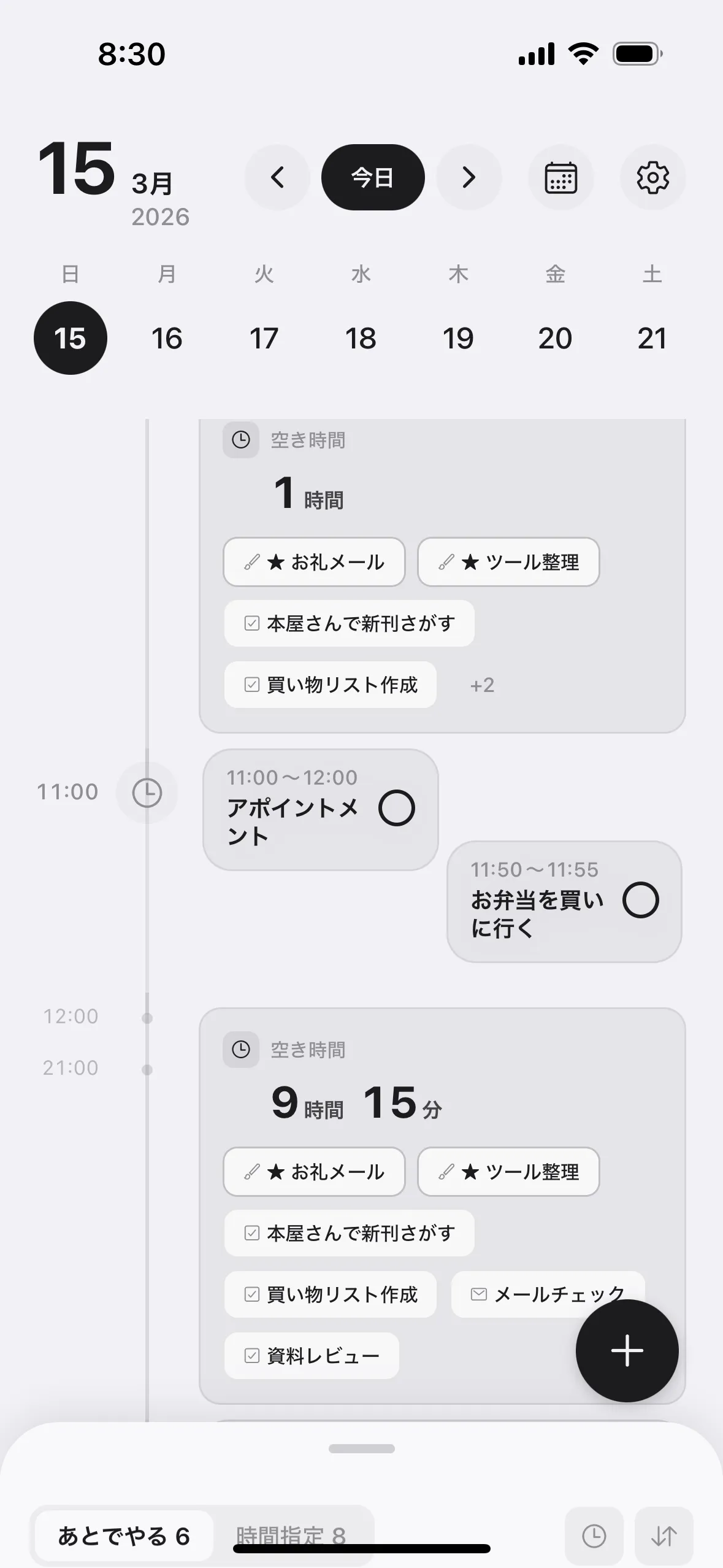
Drop ideas into "Later" as they come
Shopping, messages, articles you spotted, things you want to do someday — write them down as they come, before you forget
Tasks in "Later" show up as suggestions on the timeline when free time opens up No need to set a time or date
Once everything is out of your head, there's nothing left to remember — you can focus on what's in front of you
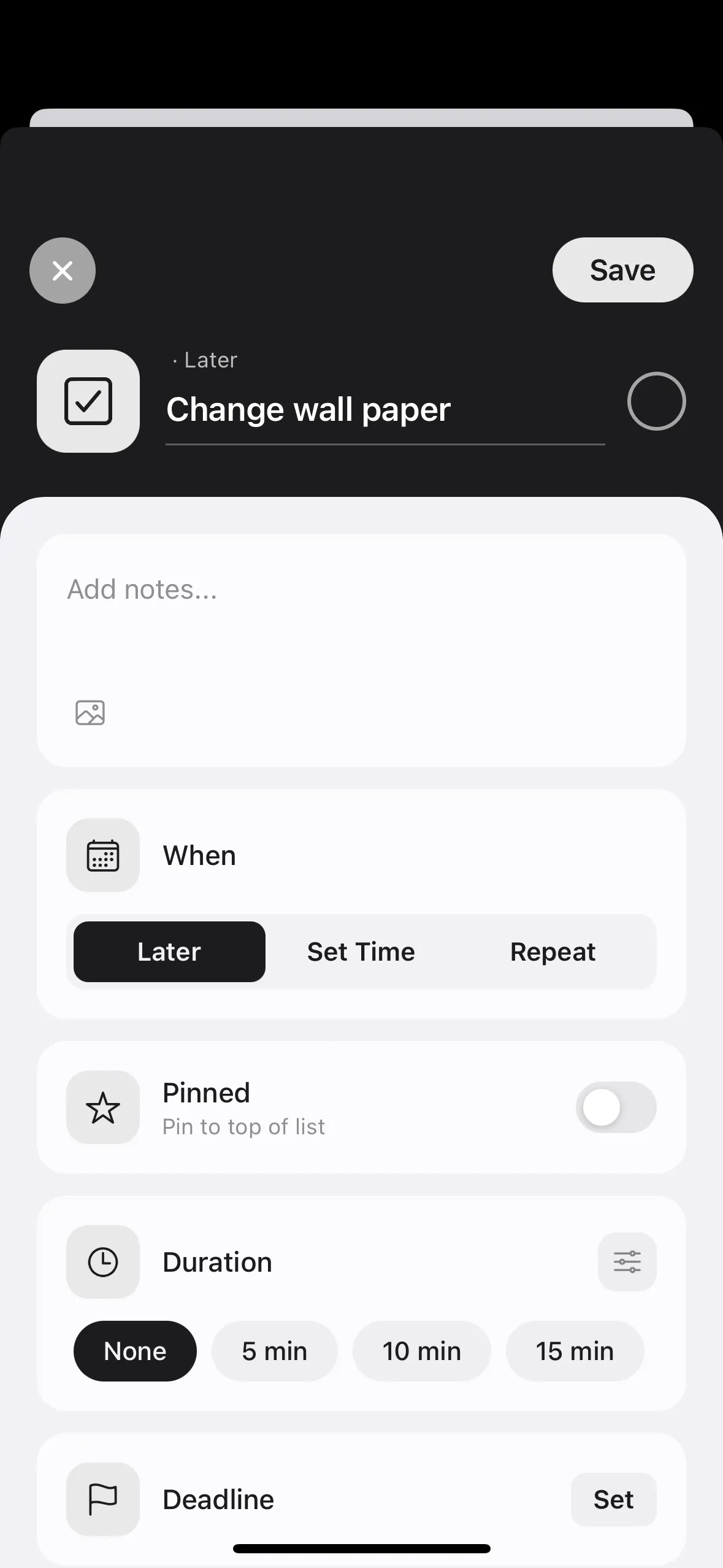
See free time between events
Tell at a glance whether a small task fits between your plans
Free time between events appears automatically on a timeline based on your wake-up and bedtime "Later" tasks that fit the gap show up as suggestions
Check the timeline in the morning to see how much room your day has Tap a suggested task to get started right away
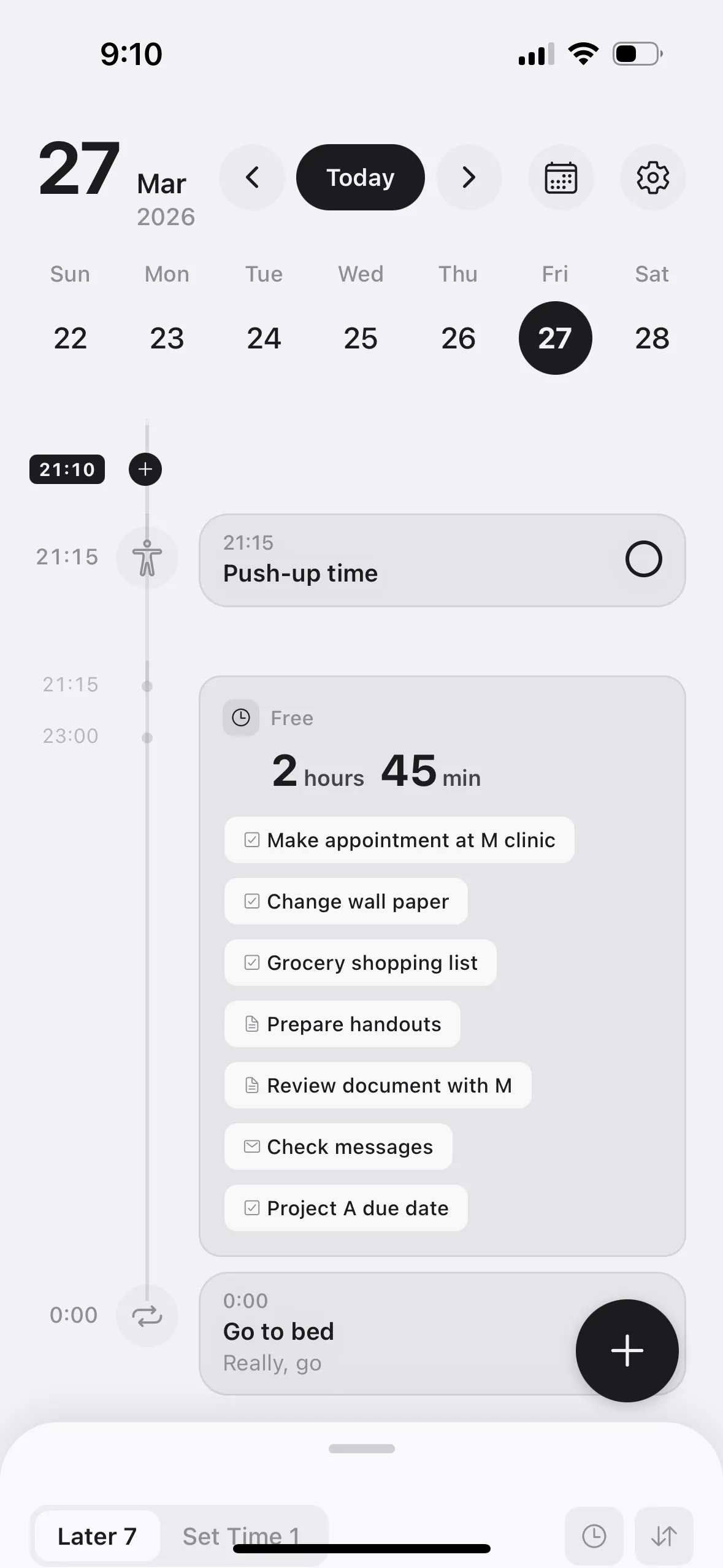
Wake-up and bedtime are set on first launch You can change them anytime later
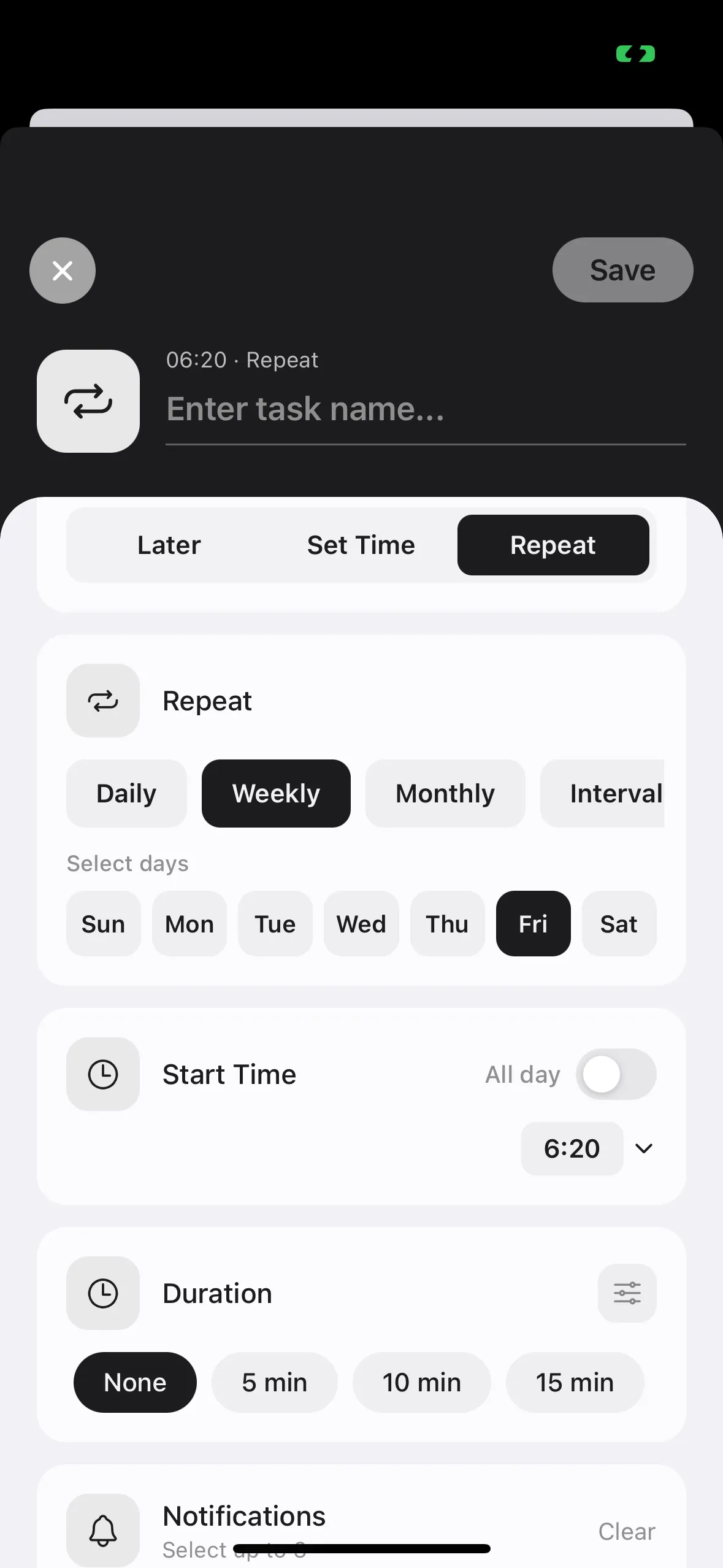
Make daily routines recurring
Taking medicine, doing laundry, taking out the trash — registering them one by one every day is a chore
Set them as recurring tasks and they appear on the timeline automatically every day (or every week)
Try just one first to get a feel for it Then add as many as you like
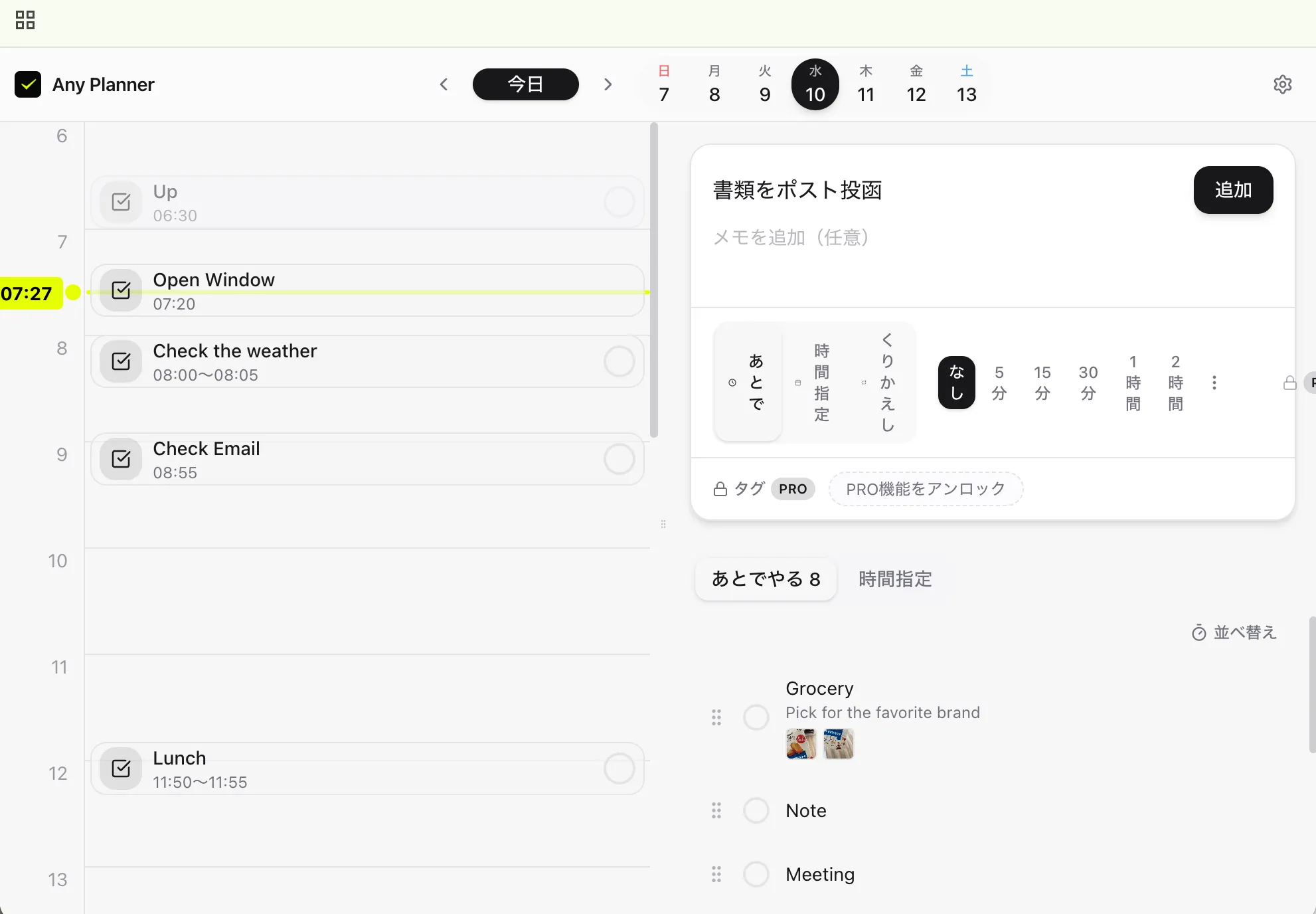
With the browser version on a PC, you can add tasks in bulk from your keyboard
No more typing them one by one on your phone
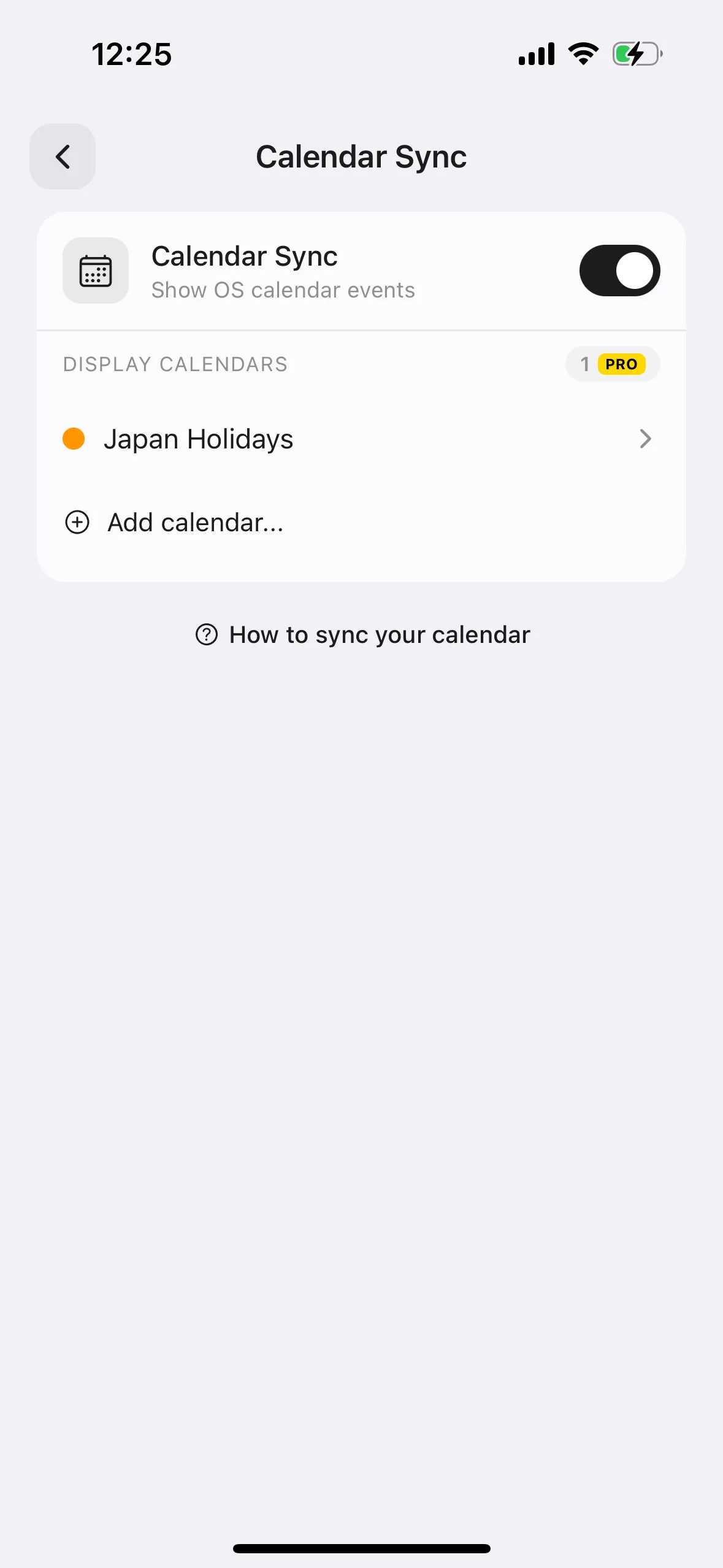
See calendar events alongside tasks
Sometimes you want to see calendar events and tasks together
Connect your device's calendar app or Google Calendar Existing events appear on the timeline, and the free time between them updates automatically
You might notice 30 free minutes between meetings, or spot a day with the whole morning open
See the month at a glance
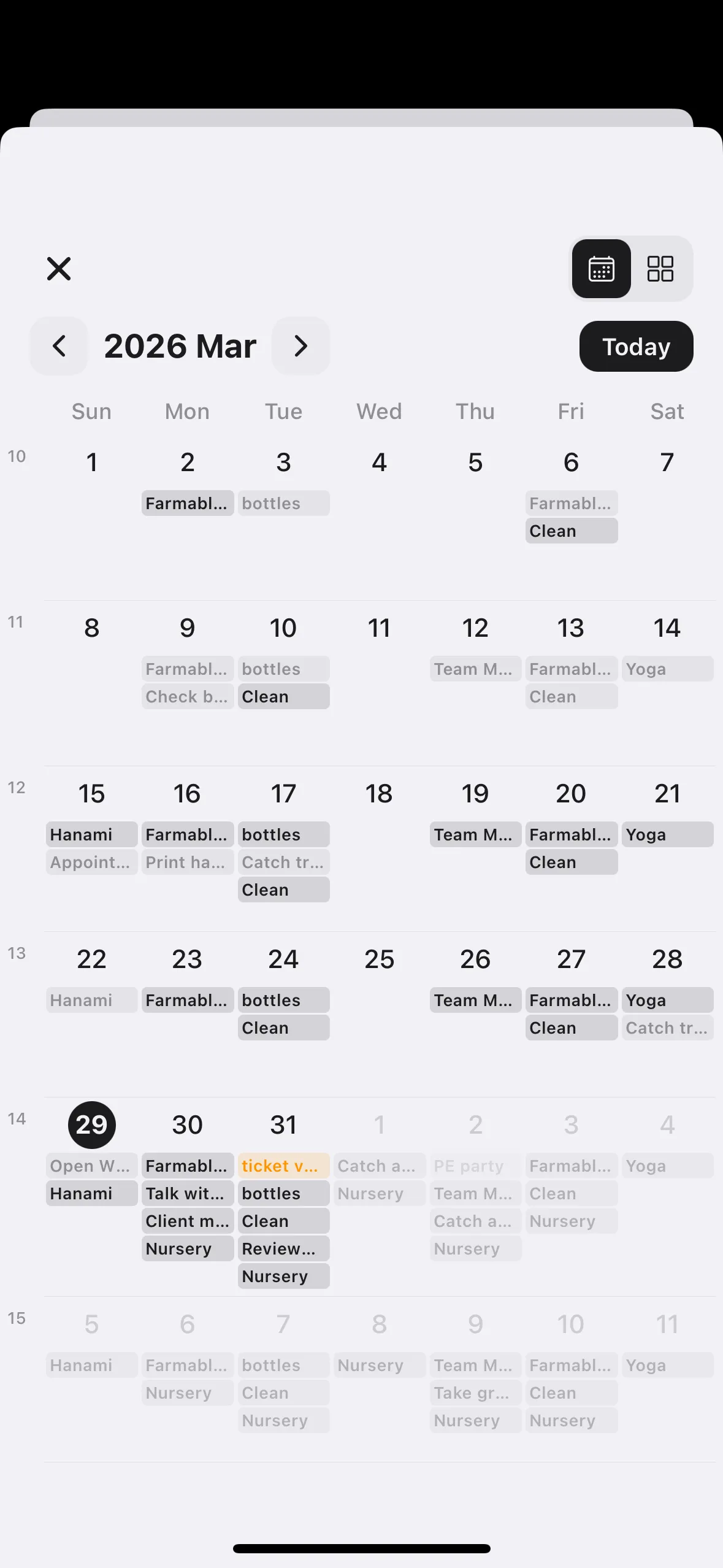
Is next week packed? Is the weekend open? — use it when you want to look a little further ahead
Switch to the monthly calendar from the calendar icon to see busy days and light days at a glance
If a week looks packed, it helps you decide which tasks to move to another day
Use it in the app or in your browser
Available on iPhone, Android, and in the browser